How to Make a Quiz on Skyward
How often do you have a small assignment that you want the kids to do before they get to class so that you can move ahead with a lesson? The expectation is that students will have read the article, chapter, lab guide, or know a particular procedure. Often these assignments are given in a worksheet form, with questions to answer that are designed to show that a student has come to class prepared. They are usually low level questions on Bloom’s Taxonomy, mainly because they are meant as a precursor to the main lesson.
Class is about to start and you overhear a student say to a friend “Oh, I forgot to do that, can I see yours!” You look up to see a handful of your students copying the answers from a friend or lab partner that remembered to do theirs. This has totally defeated the purpose of the homework and requires you to spend class time going over what students were supposed to know before they came to class.
Skyward can actually eliminate this type of cheating by students. You can post the assignment on skyward, where students must answer questions on their phones or computers before they get to class – the assignment can even be timestamped to END the night before the assignment is due. This method makes it much more difficult (though not impossible) for students to copy the work from a friend.
Here is how to make your own assignment on skyward. Instructions are for designing a template that can be used over again. The video below will also outline the steps if you find the step-by-step instructions confusing.
Step 1 – Create the Assignment (Skyward will call it a Quiz, though I treat it as homework.)
- Open the class assignment view for the class that you want to make an assignment for. (Don’t worry, you can add the same assignment to your other classes, like you do with other types of assignments.)
- Click on “Other Access” and then on “Online Assignment Templates”
- Click on “Add” which will open up a window for you to name your assignment and add your questions. I recommend multiple choice questions so that Skyward will grade it for you, though you can make open-ended questions which will require you to return to skyward to grade them.
- Save your assignment – it is now located in your template library and can be accessed for any of your classes
Step 2 – Assign to One or More Classes
- Open the class view and click on “Add Assignment.”
- Under “Options,” which is on the far right menu of this screen, click on “Copy from My Online Assignment Templates”

A new window should open showing the templates that you have created. This is where you pick the one you want to assign.
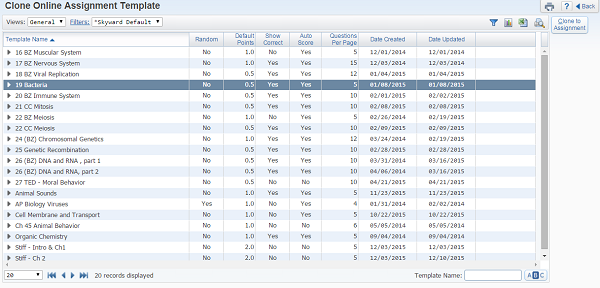
3. Click on “Clone to Assignment”
4. A new page will open where you can set the due dates, which include a time stamp. The time will default to midnight, though you can change this. The image below shows what this screen looks like.
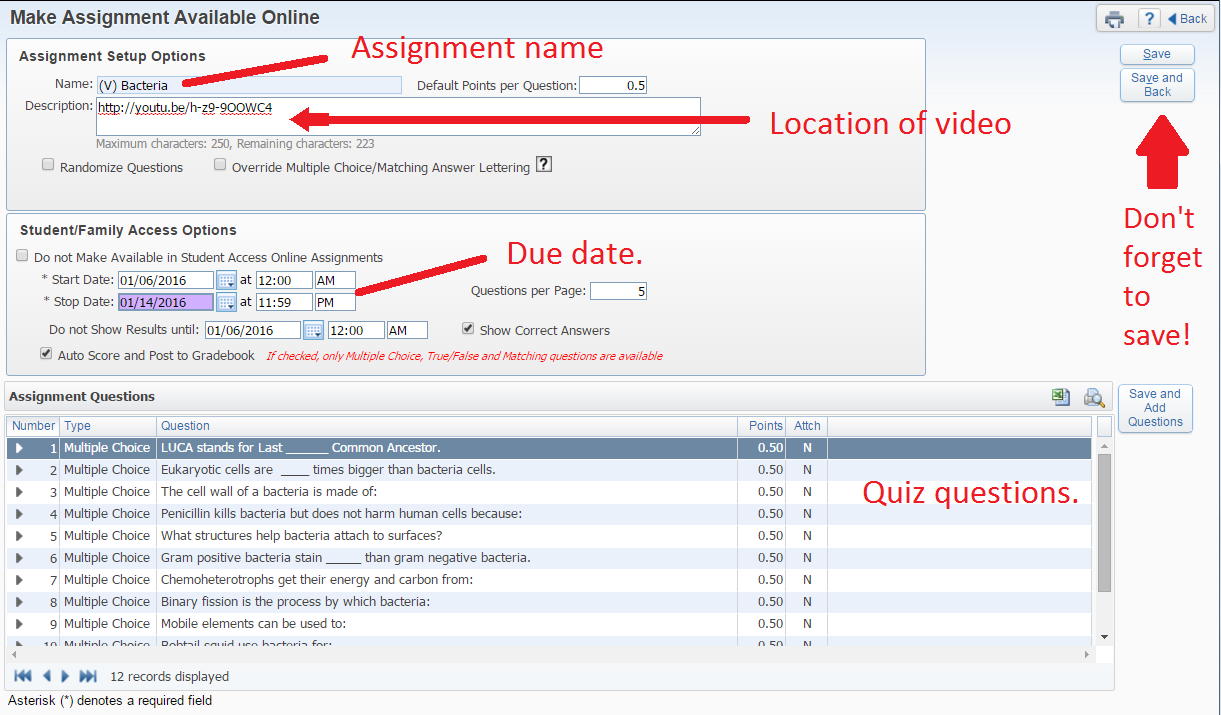
5. Click “Save and Back” VERY IMPORTANT!
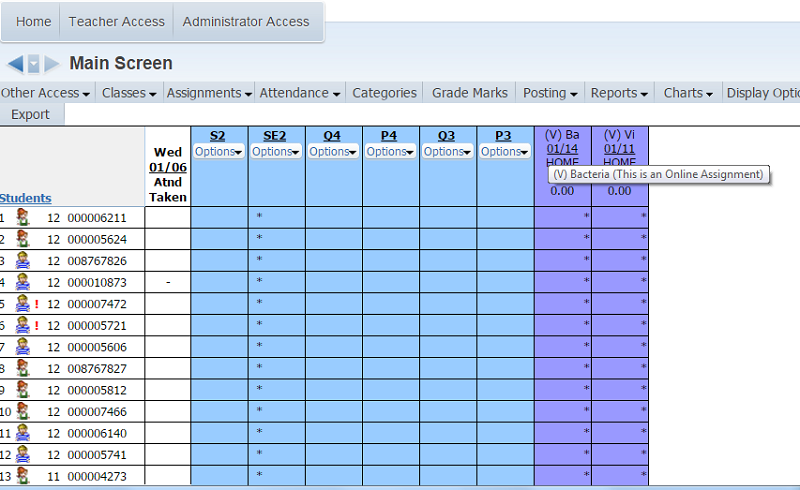
You will now return to the assignment view. You can also add the assignment to your other classes just like normal. YOU MUST SAVE again in order to actually send this to your class. If you have done this correctly, the screen showing grades will show this assignment with a subtext of “assignment is online.”
Video Tutorial


Thanks, Shannan. My student teacher figured it out and we’re trying it today! Now, it’s my turn to give it a whirl. Thanks for being so helpful.